Keep vector masters (AI, EPS, SVG or PDF) in the brand library, then export PNG, SVG or JPG for screens and a CMYK or PDF/X file for print. The format you hand someone often matters more than the design itself: a sales deck built from a website JPG, or a brochure sent to press in RGB, will look off-brand even if the logo is approved.
A complete library holds a master and everyday exports for every asset type, not only the logo: colors, fonts, photography, video, icons, templates and documents. Who gets which file depends on the job. Designers and agencies need editable masters. Print vendors, web developers, social teams, sales staff and the press need ready-to-use exports in the format their tools expect.
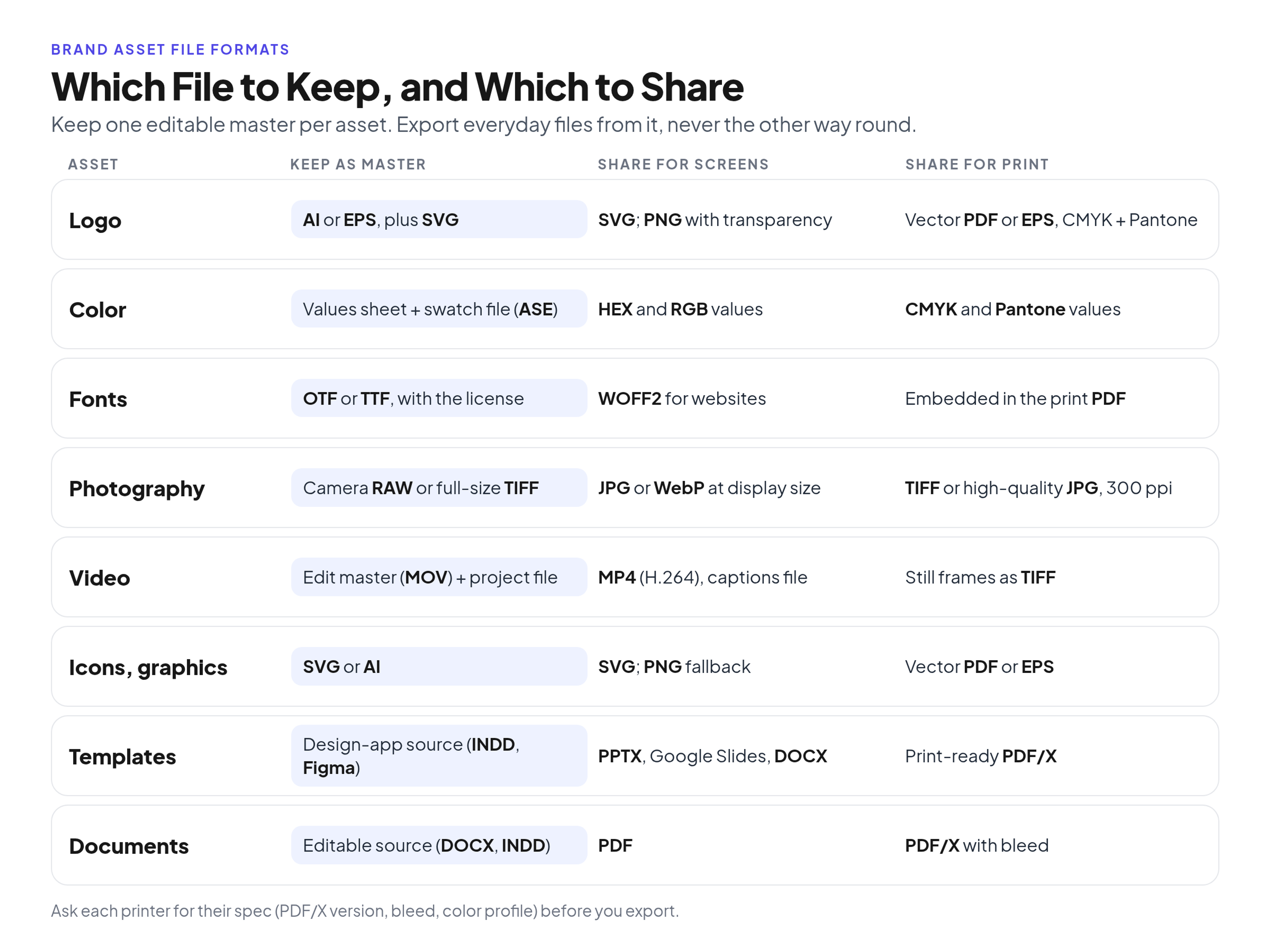
Which file to keep as the master and which to export for screens and print, by asset type.
This guide is about those formats: what each one is for, who should receive it, and how to keep one current version in circulation. If you first need the list of assets a brand owns, start with the inventory of brand asset types and examples.
Vector vs raster, and why a logo master must be vector
A logo master has to be a vector file because vectors scale to any size without losing sharpness; photographs and most everyday screen exports are raster files, which have a fixed pixel size.
Vector files store shapes as paths: points, lines and curves. Resize them from a favicon to a vehicle wrap and the edges stay clean. Common vector formats in a brand library are AI, EPS, SVG and vector PDF. Raster files store a grid of pixels. Enlarge that grid and the computer invents missing pixels, which is why a logo pulled from a website looks soft on a banner.
Transparency works differently in the two systems. Vectors can leave the background empty. Raster files need a format with an alpha channel, usually PNG or WebP, to do the same. A JPG has no alpha channel, so any "empty" area becomes a solid white box.
Resolution only applies to raster files. Print work is typically specified at 300 pixels per inch at the final physical size. Screen work is specified in pixel dimensions (for example 1920 by 1080). High-density displays often need a raster export at two times the display size so the file still looks sharp.
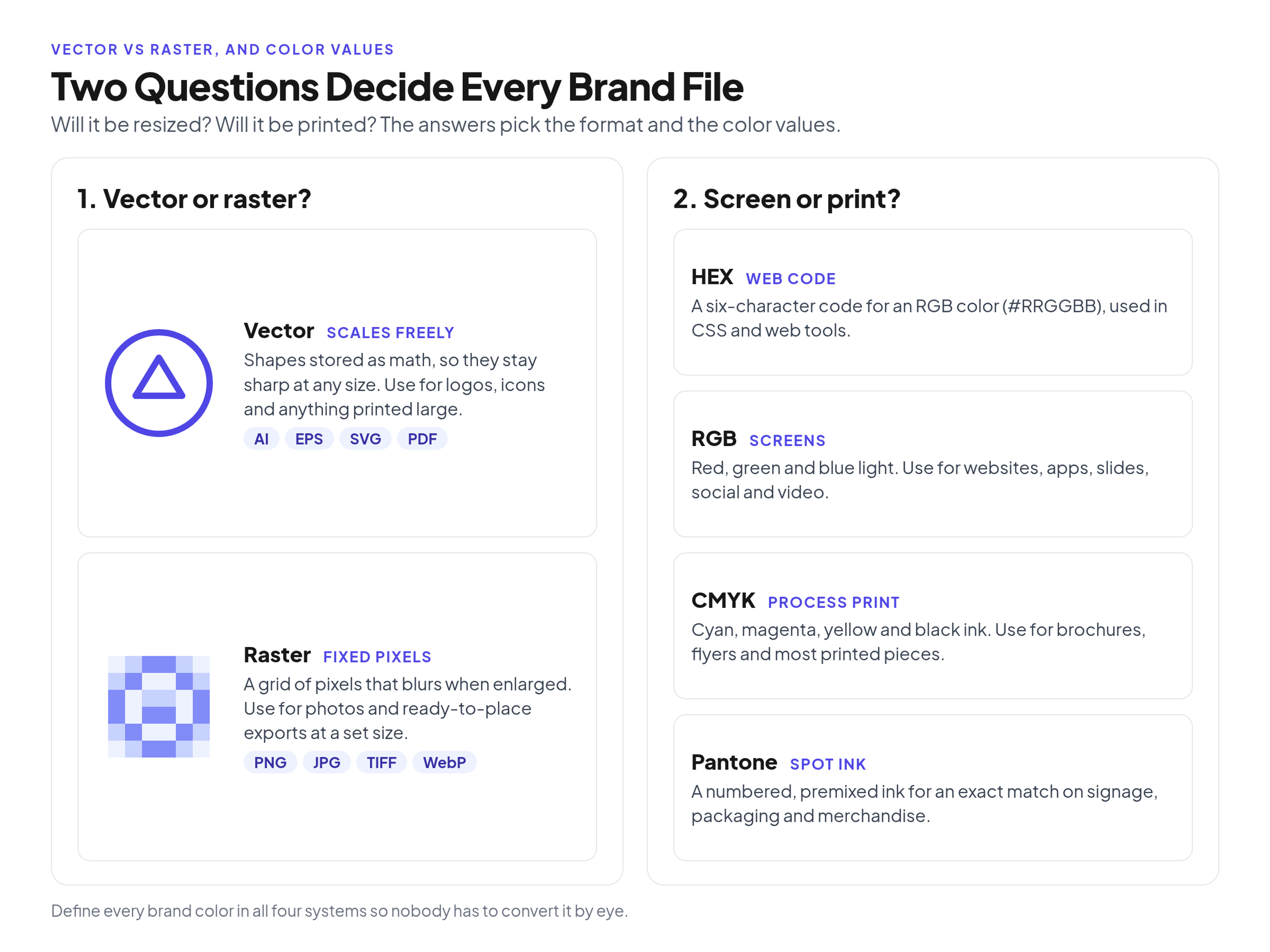
Vector vs raster brand files, and when to use HEX, RGB, CMYK and Pantone color values.
What each common format is for
Eight formats cover most brand files: AI, EPS, SVG and PDF for vectors and layouts, and PNG, JPG, TIFF and WebP for raster images. Each one has a job, and a job it should not be asked to do. Adobe lists five native formats that can preserve all Illustrator data, including multiple artboards: AI, PDF, EPS, FXG and SVG. For PDF and SVG, the "Preserve Illustrator Editing Capabilities" option has to be selected, or some of that data is dropped. See Adobe's guide to saving artwork in Illustrator.
- AI. The working Illustrator file, with layers, editable type and original paths. Keep it as the logo and icon master. Do not send it to people who do not have design software.
- EPS. A long-standing vector exchange format. Promotional-product and many print vendors still ask for it. Do not use it for websites or office decks.
- SVG. The web standard for two-dimensional vector graphics. The W3C SVG 2 specification defines SVG as an XML language for describing two-dimensional vector and mixed vector/raster graphics that can be styled and scaled to different display resolutions. Use it for logos and icons on websites and in modern office apps. Do not use it for photographs.
- PDF. A container that can hold vectors, rasters, fonts and a locked layout. For commercial print, ask the printer for a PDF/X file. The Library of Congress description of the PDF/X family notes that PDF/X-4 (ISO 15930-7:2010) is widely used for complete exchange of print data in both color-managed and CMYK workflows, and that a "blind" exchange requires fonts and images to be embedded and the print and trim boxes to be defined. Do not drop a PDF into an HTML image slot.
- PNG. A lossless raster format with transparency. Use it for logos, icons and graphics that sit on colored slides, emails or social posts. Do not send a PNG as the only file to an offset printer.
- JPG. A lossy raster format built for photographs. The JPEG committee's overview of JPEG 1 describes the well-known Huffman-coded DCT format as a lossy image format, with a lossless option also in the standard. A JPG has no transparency, and compression can leave artifacts around sharp logo edges. Do not use it for logos or icons.
- TIFF. A high-quality raster format often used as a photographic or print master, with large file sizes. Do not upload a full-size TIFF to a website.
- WebP. A web raster format with both lossy and lossless compression, and transparency in both modes. Google's WebP documentation states that lossless WebP images are 26% smaller than PNGs, and lossy WebP images are 25-34% smaller than comparable JPEGs at equivalent quality. Use it when your developers or CMS support it. Do not send it to a print vendor.
Formats to store for every asset type
A complete library stores a master plus screen and print exports for eight asset types: the logo, color, fonts, photography, video, icons, templates and documents. This is the text version of the cheat sheet above.
Logo. Keep AI or EPS plus an SVG as the masters. Share SVG and transparent PNG files for screens, and a vector PDF or EPS in CMYK, with Pantone values, for print.
Color. Store every approved color as HEX and RGB for screens, CMYK for process print, and a Pantone number when you need a spot ink. HEX is a compact way to write an RGB value for the web. RGB is light on a screen. CMYK is cyan, magenta, yellow and black ink. Spot colors, including those in the Pantone Matching System, are mixed as a solid ink and printed without the CMYK screen. X-Rite's explanation of process and spot color describes each Pantone Matching System color as mixed from its own ink formula and placed on a printing unit, and notes that spot colors are commonly used for logos, brand colors and colors CMYK cannot achieve. Keep a values sheet and, if your designers use Adobe apps, a swatch file (ASE) as the color master.
Fonts. Keep licensed desktop files as OTF or TTF, and keep WOFF2 files for websites. WOFF2 is a compressed web font format, so pages load the brand typeface faster than they would with desktop files. License terms decide who may receive the font files. If the license does not cover an agency or a printer, do not attach the font; ask them to license it, or outline the type in the print PDF.
Photography. Keep a camera RAW or a full-size TIFF as the master. Export JPG or WebP at the display size for screens, and a 300 ppi TIFF or high-quality JPG for print.
Video. Keep the edit master (often a MOV) and the project file. Deliver MP4 (H.264) with a captions file. If print or a still is needed, export a TIFF frame from the master, not a screenshot of the compressed MP4.
Icons and graphic elements. Keep SVG or AI masters. Share SVG on the web, with a PNG fallback where SVG is not supported, and a vector PDF or EPS for print.
Templates. Keep the design-app source (InDesign, Figma or the equivalent) as the master. Share the file people actually open: PPTX or Google Slides, DOCX, maybe a Keynote file. For a printed piece, export a print-ready PDF/X.
Documents. Keep the editable source (DOCX or InDesign). Share a PDF for reading, and a PDF/X with bleed when the document goes to press.
Who needs which file
Send editable masters (AI, EPS, SVG, OTF) only to the people who edit, and ready-to-use exports (PNG, JPG, PDF/X, WOFF2, PPTX) to everyone else. Ask one question first: what will you open this in, and is it for a screen or for print?
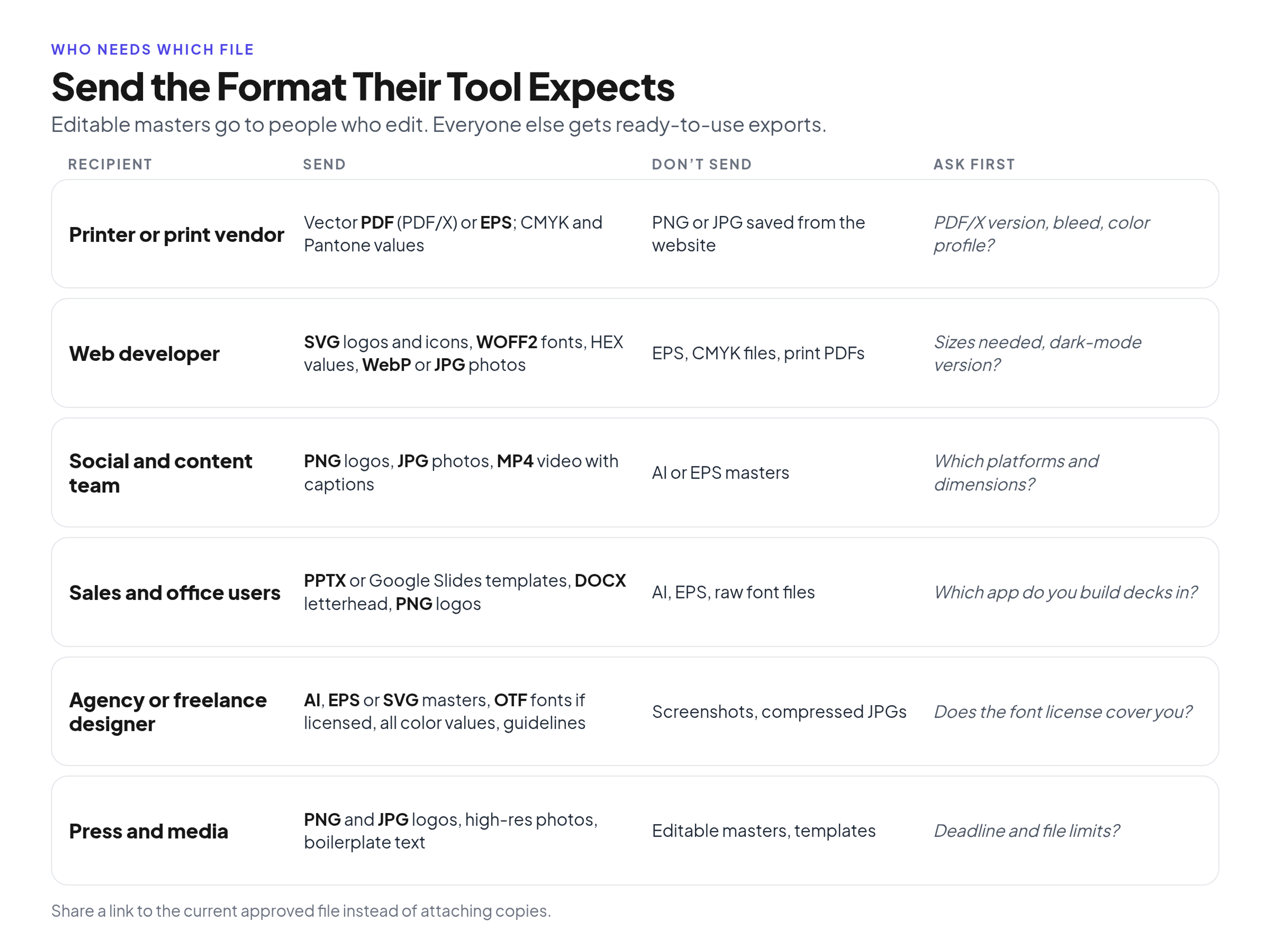
Send each recipient the format their tool expects, and keep editable masters for the people who edit.
Printer or print vendor. Send a vector PDF (ask for the PDF/X version, bleed and color profile) or an EPS, plus CMYK and Pantone values, and high-resolution TIFFs for photographs. Do not send a PNG or JPG saved from the website, or an RGB slide export.
Web developer. Send SVG logos and icons, WOFF2 fonts if the license allows, HEX values, and WebP or JPG photographs at the sizes they need, plus a dark-background logo if the site uses one. Do not send EPS files, CMYK files or print PDFs.
Social and content team. Send PNG logos, JPG photographs and MP4 video with captions, in the dimensions the platforms use. Do not send AI or EPS masters, or a CMYK print file (colors will shift when the platform treats it as a screen image).
Sales and office users. Send PPTX or Google Slides templates, a DOCX letterhead and PNG logos with a transparent background. Do not send AI, EPS or raw font files. They cannot open them, and they will grab whatever is already on their desktop.
Agency or freelance designer. Send the AI, EPS or SVG masters, OTF fonts if the license covers them, all color values and the current guidelines. Do not send screenshots or compressed JPGs and expect them to rebuild the brand from those. Ask whether their font license already covers the work.
Press and media. Send PNG and JPG logos, high-resolution photographs and a short boilerplate. Do not send editable masters or working templates. A public, current press kit beats an emailed zip that goes stale. For the access rules and packets behind each of these handoffs, see the delivery workflow for agencies, printers and other outside partners.
Mistakes that produce off-brand output
The five mistakes below all put an approved logo or color on the page in the wrong file, which is why the result still looks off-brand.
- A JPG logo on a colored background. The white box is the missing alpha channel. Keep a transparent PNG (and an SVG) in the everyday folder so nobody has a reason to use the JPG.
- A screenshot or a logo copied from the website. Those files are sized and compressed for a browser. They fall apart on a banner, a booth or a printed program.
- An RGB file sent to a printer. Screens mix light; presses mix ink. An RGB neon will often print duller or shift hue unless it is converted, with a proof, to the printer's CMYK or Pantone values.
- An AI file sent to someone without design software. The file will not open. The person will either raise a ticket or use an old copy they already have.
- An outdated version still in circulation. If v1 and v2 sit in the same folder, people guess. Keep one current approved file in the live library and move the previous version to the archive as soon as the new one is approved.
Example: a logo package that covers every request
A complete logo package has four groups of files: master, screen, print and social. The package below is an illustrative example of 19 files for a fictional company, Halden Outdoor Co. The file names follow one pattern, brand_asset_variant_color.ext, so a person can tell the variant, the color and the format without opening the file.
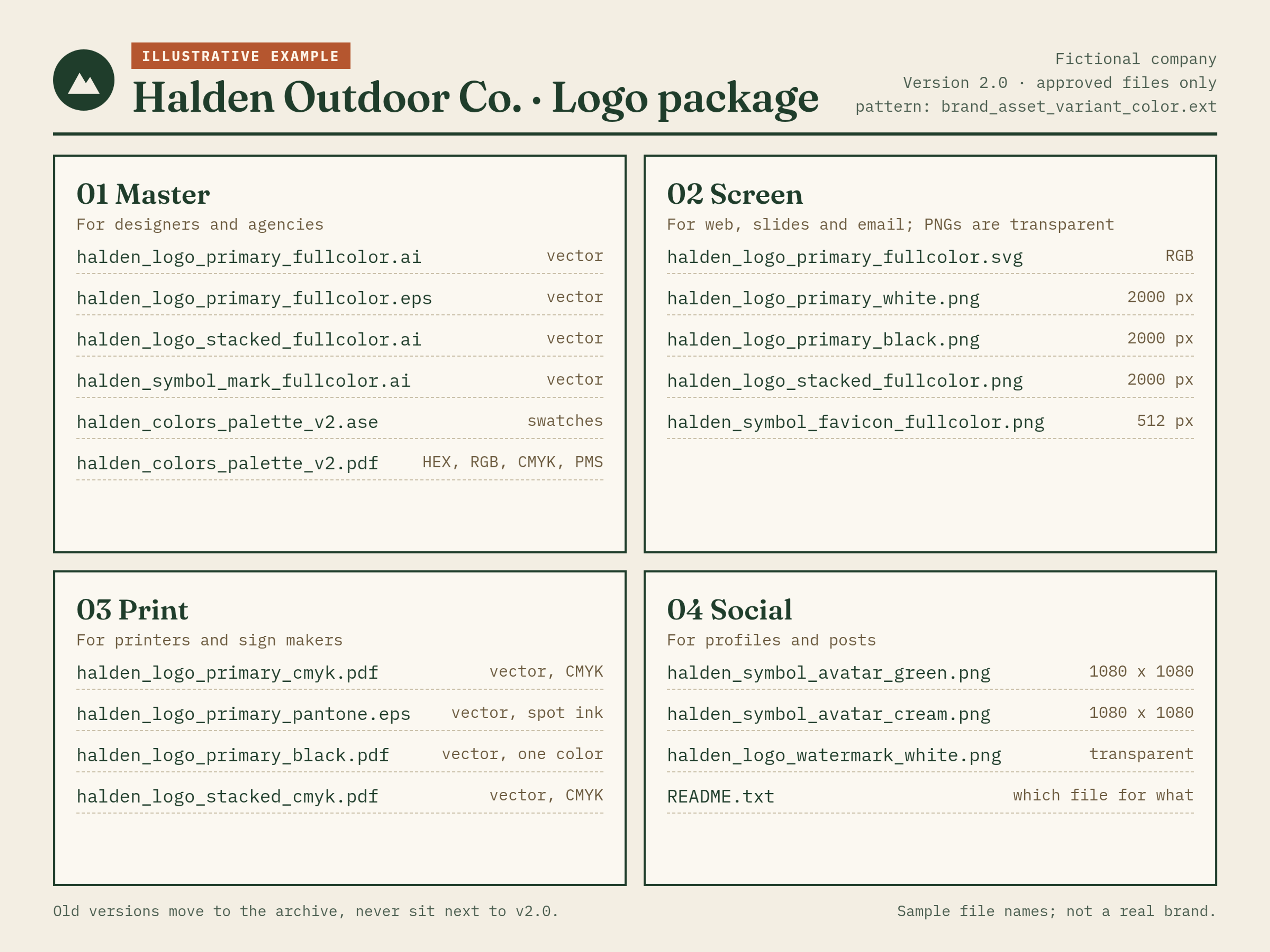
Illustrative example. Fictional company; file names follow one naming pattern.
The master folder holds the editable AI (and an EPS exchange copy), plus a swatch file and a values PDF. The screen folder holds an SVG and transparent PNGs at a generous pixel size, plus a favicon. The print folder holds vector PDFs and EPS files already in CMYK or Pantone. The social folder holds pre-sized avatars and a short README that says which file to use where. Old versions do not sit next to these files; they move to an archive.
What to keep in the brand library, and how to deliver it
Keep the native source files, one current approved version of each asset, and a link-based way to hand files out. When a design project closes, ask for the native source files, not only the exports; the next designer will need the masters. Keep those sources apart from the ready-to-use exports, so a sales rep never opens the working file by accident. The folder layout for that split is covered in the source-versus-export folder setup for a brand library.
As soon as a new logo, template or photo is approved, archive the previous one. If you need a short, predictable file name, a pattern of brand, asset, variant, color and format is enough; the rest of a naming system belongs in a separate convention.
Deliver a link to the current file, not an email attachment. An attachment becomes a second copy the moment it lands, and it will still be in someone's inbox after you replace the file. Brandportal can hold these files in a public or password-protected portal, with folders, version history, share links, roles (Admin, Editor, Viewer), unlimited free viewers, and metadata and tagging so people can find the PNG they need. Paid plans include a 14-day free trial; see pricing.
FAQ
What are the four types of file formats?
In a brand library, the useful split is four groups: vector graphics (AI, EPS, SVG, vector PDF), raster graphics (PNG, JPG, TIFF, WebP), document and template files (PDF, PDF/X, PPTX, DOCX) and font files (OTF, TTF, WOFF2). Outside design work, lists often group files by media instead, such as text, images, audio and video. For brand work, treat video as its own delivery format (a MOV master and an MP4 export) alongside those four groups.
Should logos be JPEG or PNG?
For everyday screen use, share a PNG (or an SVG), not a JPEG. PNG keeps a transparent background, so the logo sits on a colored slide, a photograph or a website header. JPEG does not support transparency and will put a white box around the mark.
Which file format is best for logos?
There is no single file that covers every use. Keep a vector master (AI or EPS, plus an SVG). Give web developers the SVG. Give office and social teams a transparent PNG. Give printers a vector PDF or EPS in CMYK, with Pantone values when the job uses a spot ink.
What files does a printer need?
Ask the printer first for the PDF/X version, bleed, trim and color profile they want. In most jobs that means a print-ready PDF with fonts outlined or embedded, images at print resolution, and CMYK or Pantone color. If they need a standalone logo, they will usually ask for a vector EPS or a vector PDF. Do not send a website PNG and hope they can rebuild it.
Conclusion
A brand library earns its keep when the right file is the easy file: a vector master locked away, everyday exports sitting next to it, and each recipient getting the format their tool can use. Build that set once for every asset type, keep one current version, and share a link instead of another copy. The next request for "the logo" should be a click, not a scavenger hunt.