A good brand asset folder structure has a short, numbered first level that sorts in a fixed order: 00 Start here, 01 Logos, 02 Colors, 03 Typography, 04 Icons and graphics, 05 Templates, 06 Photography, 07 Video, 08 Campaigns, 09 Copy, and 99 Archive at the bottom. Keep it two or three levels deep, split editable source files from ready-to-use exports inside each folder, keep only current approved files in the main folders, and move anything superseded to the archive instead of deleting it.
When someone in sales or marketing needs the company logo, they should be able to open the shared folder and guess where it lives on the first try. When they can't, they ask a designer, dig through old email attachments or reuse whatever file is already on their laptop. That is how an outdated logo ends up in a partner deck.
This guide gives you a sample folder tree you can copy, explains the rules behind it, compares the three common ways to organize brand files, and walks through permissions, upkeep and migrating a messy shared drive.
A Sample Brand Asset Folder Tree You Can Copy
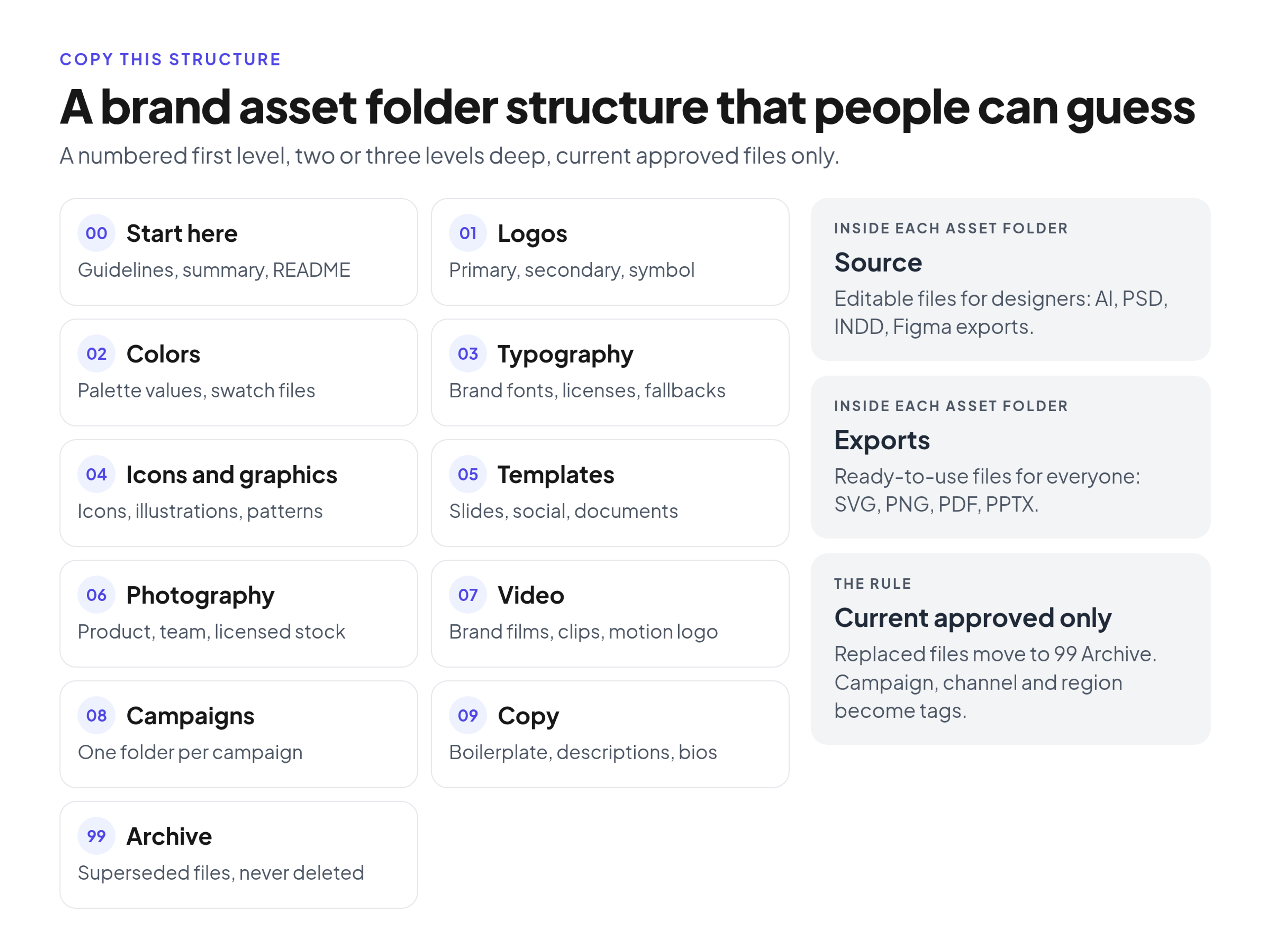
The structure below works the same way in Google Drive, Dropbox, SharePoint or a shared server. Each line is one first-level folder, followed by the subfolders that usually sit inside it. Rename the subfolders to match your brand, but keep the numbers and the order.
- 00_Start_Here: Brand_Guidelines (current guidelines PDF or link), Quick_Reference (one-page summary of logo, colors and fonts), README (what goes where, who owns the folder, how to request files)
- 01_Logos: Primary_Logo, Secondary_Logos, Symbol_and_Monogram, Co-Branding; each with Source and Exports subfolders
- 02_Colors: Palette_Reference (HEX, RGB, CMYK and Pantone values), Swatch_Files (ASE and other design-app swatches)
- 03_Typography: Brand_Fonts (with license files), Web_and_System_Fallbacks, Type_Specimens
- 04_Icons_and_Graphics: Icons, Illustrations, Patterns_and_Textures
- 05_Templates: Presentations, Social_Media, Documents_and_Letterhead, Email_Signatures
- 06_Photography: Product, Team_and_Culture, Licensed_Stock (with license notes)
- 07_Video: Brand_Films, Social_Clips, B-Roll, Motion_Logo
- 08_Campaigns: one folder per campaign, named with year and name, for example 2026_Q1_Product_Launch and 2026_Q3_Trade_Show
- 09_Copy_and_Boilerplate: Company_Boilerplate, Product_Descriptions, Leadership_Bios, Tone_of_Voice_Examples
- 99_Archive: Superseded_Logos, Retired_Templates, Past_Campaigns, Old_Guidelines
If your team produces a lot of sales collateral or product sheets, add them as 10_Sales_Collateral or 11_Product_Marketing rather than squeezing them into Templates. The numbers leave room for that, and 99 stays last.
The README in 00_Start_Here matters more than it looks. The MIT Libraries guide to planning a folder hierarchy and file naming up front recommends thinking about how other people will look for files later and suggests a shared folder with the hierarchy in place plus a readme file for new contributors. The same advice applies to brand files: a short note at the entrance answers many repeat questions before anyone asks them.
Why Number the First Level and Keep the Tree Shallow
Most file systems sort folders alphabetically. Without numbers, Archive sits near the top of the list and Video drifts to the bottom, so the order tells people nothing. A two-digit prefix puts the folders in the order people need them: guidelines and logos first, the archive last. It also keeps the same order on every computer and in every app that opens the folder.
Keep the tree to two or three levels. Every extra click is a chance to give up. When people have to open five nested folders to reach a transparent PNG, many will save a copy to their desktop so they don't have to do it again. That local copy is the one that goes out of date and resurfaces months later.
A simple test: if a new hire can't find the main logo, the slide template and the primary color values within a few clicks and without asking anyone, the tree is too deep or the names are unclear.
When to stop adding folders and use tags instead
Folders answer one question: what kind of asset is this? Assets often have more attributes than that, such as campaign, channel, region, product, approval status or usage rights. If you try to express all of them as folders, you end up with paths like Photography/Product/EMEA/Social/2026/Approved, and the same image has to live in several places.
Stop adding folders once you reach the asset type and one useful split below it. Handle everything else with tags, metadata fields or a short label in the file name. Many file-sharing services and brand portals let you add tags or descriptions to files, so people can filter a single Photography folder by region or usage rights without a separate folder for each combination.
Separate Source Files From Ready-to-Use Exports
A designer and a sales rep need different versions of the same logo. The designer needs the editable source file, such as AI, PSD, INDD or a Figma export. The sales rep needs a PNG or SVG that drops straight into a slide. Mixing the two in one folder confuses non-designers, who often open the first file they see and get an error or the wrong format.
Inside each asset folder, use two subfolders:
- Source: editable working files (AI, EPS, PSD, INDD, Figma exports, layered files). Designers and agencies use these.
- Exports: ready-to-use files (SVG, PNG, JPG, PDF, PPTX), ideally in the sizes and color versions people ask for most, such as full color, one color, white on dark backgrounds.
For file names, a short, predictable pattern of brand, asset, variant, color and format works with this structure; our guide to brand asset naming conventions covers it in detail.
The "current approved" rule and the 99 Archive
The single rule that keeps a folder structure trustworthy: folders 00 through 09 (and any you add) hold only current, approved files. If a file is in the main folders, anyone can use it without checking.
When a logo, template or photo is replaced, move the old version to 99_Archive right away, into the matching subfolder. Don't delete it. You may need it to answer a legal question, rebuild an old campaign or check what a partner was given. Archiving keeps that history without letting old files compete with current ones.
By Asset Type, by Channel or by Campaign
There are three common ways to organize the first level of a brand folder. Each has honest trade-offs.
- By asset type (logos, colors, fonts, photography). This is easy to guess and scales well, because the asset types rarely change. The weakness is time-bound work: a campaign's banners, social posts and landing page images end up scattered across several folders.
- By channel or use case (social, print, web, events). This matches how some teams think about their work, but it creates duplicates. The primary logo gets copied into the Social, Print and Web folders, and when it changes, someone has to find and replace every copy.
- By campaign (spring launch, annual conference). This keeps everything for one project together, which suits agencies and campaign teams. It works poorly for evergreen assets: people can't tell which campaign folder holds the current logo.
The structure in this guide is a hybrid. Evergreen brand elements are organized by asset type in folders 01 to 07 and 09. Time-bound work goes into 08_Campaigns, one folder per campaign. Campaign folders hold only what was made for that campaign, and they link to or reference the core logos rather than copying them. When a campaign ends, move its folder to 99_Archive/Past_Campaigns.
Channel then becomes a tag or a subfolder inside Templates (for example Social_Media or Presentations), not a first-level split.
Sub-brands, products and regions
If you manage several sub-brands, put the brand at the very first level and repeat the same numbered tree inside each one, for example Brand_A/00_Start_Here through Brand_A/99_Archive. Keep shared corporate assets, such as the parent logo and legal boilerplate, in a separate Corporate folder that every sub-brand refers to.
For regions, avoid a full copy of the tree per country. Most assets are global. Keep regional versions, such as translated templates or local photography, in clearly named subfolders (Templates/Presentations/DE) or tag them by region, so the global file stays the default.
Permissions and Ownership per Folder
A clear structure falls apart quickly if everyone can upload, rename and move files. Decide who can change each part of the tree and who only views it:
- Brand owner or brand manager: edits 00_Start_Here, 01_Logos, 02_Colors and 03_Typography, and approves what goes into the archive.
- Design team or agency: uploads to Source folders and to the asset folders they produce, after approval.
- Campaign owners: edit their own folder in 08_Campaigns.
- Everyone else, including freelancers and partners: view and download only.
Common file-sharing services support this split. In Dropbox, for example, team folders are shared with groups that get either edit or view-only access, and Google Drive and SharePoint let you set similar edit or view access per folder. For outside agencies and freelancers, our guide on how to share brand guidelines and files with outside partners covers access links and onboarding.
Write the owner of each first-level folder in the README, so people know whom to ask when something is missing.
A Simple Maintenance Routine
Folder structures decay slowly, then all at once. A short routine prevents that:
- When something changes: the owner uploads the new file, moves the old one to 99_Archive and notes the change in the README or changelog.
- When a campaign ends: the campaign owner moves its folder to 99_Archive/Past_Campaigns.
- Every quarter: the brand owner does a short review. Look for duplicates, files sitting at the wrong level, stray folders named "New" or "Misc", expired photo licenses and templates that no longer match the guidelines.
- Once a year: check whether the first-level folders still match how people work, and adjust the README.
How to Migrate a Messy Shared Drive Step by Step
Don't reorganize a live drive in place while people are using it. Build the new structure next to it, then switch.
- Build the empty tree. Create the numbered folders and the README in a new location, such as a new shared drive or a new top folder, with permissions set before any files arrive.
- Inventory the old drive. List what exists: logos, templates, photos, fonts, campaign files. Note what is current, what is outdated and what is missing, such as a vector logo nobody can find.
- Pick the current approved version of each asset. Have the brand owner confirm which logo, template and color file is the right one. This is the slowest step and the most important.
- Move current files into the new tree. Do it deliberately rather than in bulk, so you can rename files to your naming convention and split Source from Exports as you go.
- Move everything else to 99_Archive. Keep the old material, but out of the active folders. If you're unsure about a file, archive it; it can always be moved back.
- Switch people over. Announce the new location, explain the numbering and the view-only default, and update links in the intranet, onboarding documents and email signatures.
- Lock the old drive. Make it read-only and add a note at its top level that points to the new location, so nobody keeps adding files to it.
Common Folder Structure Mistakes
- Folders named after departments or people. "Marketing Stuff" or "Anna's Graphics" tells nobody what is inside, and the folder becomes a mystery when that person leaves. Name folders after what they contain.
- "Final", "New" and "Latest" folders. These words stop being true the moment the next version arrives. The current approved rule replaces them: what is in the main folders is current.
- Deep nesting. Five or six levels push people to use search or save local copies, which defeats the structure.
- Duplicates across folders. Copying the logo into every campaign and channel folder means several versions drift apart. Keep one copy in 01_Logos.
- No archive. Without a 99_Archive, people either delete old files and lose the history, or leave them in place where they get reused by mistake.
- No owner. If nobody is responsible for the tree, it slowly fills with stray folders and duplicates.
When Folders Are Not Enough
A shared drive with a clean tree is enough for many teams. It gets harder when the guidelines live in one place and the files in another, when outside partners need access, or when you need to know which version someone downloaded. That is the point where many teams look at when a brand portal makes more sense than a shared drive.
Brandportal gives you an online brand guidelines and asset library with the same ideas built in: folders, metadata and tagging for filtering, version history so the current file is clear, and share links for a single folder or file. Portals can be public or password-protected, roles (Admin, Editor, Viewer) control who can change content, and viewers are free. If you want to try the folder tree from this guide with your own files, see plans and the 14-day free trial.
FAQ
Should we organize brand assets by asset type or by channel?
By asset type for evergreen elements such as logos, colors, fonts and photography, because those categories rarely change and people can guess them. Add a campaigns folder for time-bound work, and treat channel as a tag or a subfolder inside templates rather than a first-level split, so you don't duplicate core files.
How many folder levels should a brand asset library have?
Two or three. The first level is the asset type, the second is a useful split such as primary and secondary logos, and the third is usually Source and Exports. If you need more than that, use tags or metadata instead of another layer.
Where should old logos and retired templates go?
Into a 99_Archive folder at the bottom of the tree, in subfolders that mirror the main structure. Archive them instead of deleting them, and keep only current approved files in the main folders.
How should we handle sub-brands?
Put each sub-brand at the first level and repeat the same numbered tree inside it. Keep shared parent-brand assets in one corporate folder that every sub-brand refers to, rather than copying them into each brand.
Who should be able to upload files?
Only a small group: the brand owner, the design team and campaign owners for their own folders. Everyone else, including agencies and freelancers who only use the files, should get view and download access.
Conclusion
A brand asset folder structure works when people can guess it. Number a short first level, keep the tree two or three levels deep, separate source files from exports, keep only current approved files in the main folders and move everything else to the archive. Organize evergreen assets by type, give campaigns their own folder, use tags for everything else, and give each folder an owner. Copy the sample tree, adjust the subfolders to your brand, and review it every quarter so it stays the place people trust.