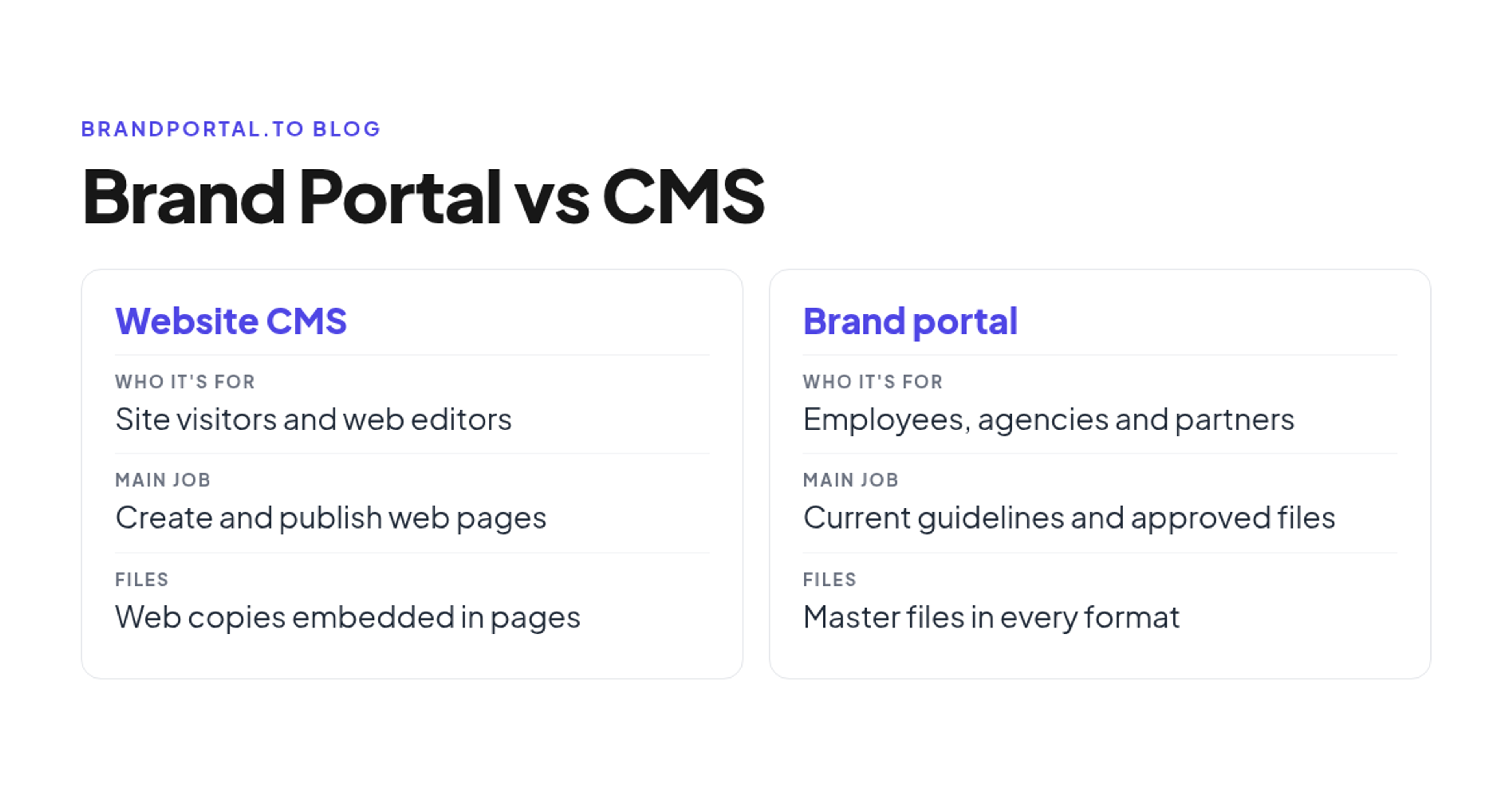
A website content management system (CMS) is where a web or content team creates and publishes pages and posts for site visitors. A brand portal is where the brand team keeps the current brand guidelines and approved, downloadable brand files for employees, agencies, freelancers, printers and partners. You usually need both, and they work together: the portal holds the master files and the rules, and the CMS receives only the web-ready copies it publishes.
The mix-up usually starts with a simple request. An agency asks "Can you send me the logo?", someone points to the website, and a file saved from the homepage ends up on a trade show banner. Both systems store images, so they look interchangeable. They are built for different people and different jobs.
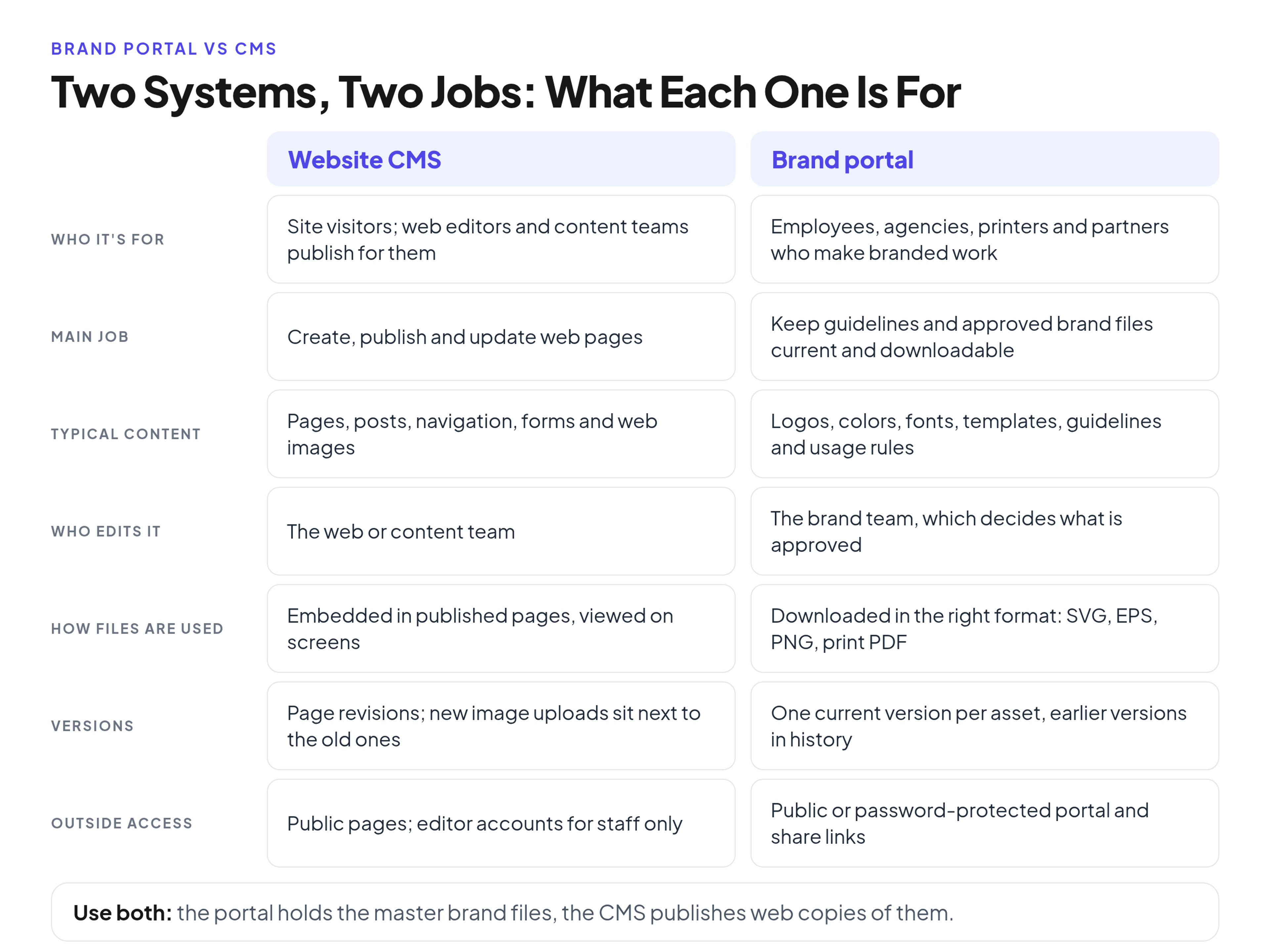
Brand portal vs CMS: the short comparison
If you need the background first, read the full definition of a brand portal. Here are the differences that matter to a brand team:
Who it is for
- CMS: web editors, content marketers and developers who publish the site, and the visitors who read it
- Brand portal: employees, agencies, freelancers, printers and partners who make branded work
Main job
- CMS: create, publish and update web pages
- Brand portal: keep the guidelines and approved brand files current and easy to download
Typical content
- CMS: pages, blog posts, landing pages, navigation, forms and the images used on them
- Brand portal: logo sets, color values, typography, templates, imagery and the brand guidelines with usage rules
Who edits it
- CMS: the web or content team
- Brand portal: the brand team, which decides what is approved
How files are used
- CMS: embedded in published pages and viewed on screens
- Brand portal: downloaded in the format each job needs, such as SVG, EPS, transparent PNG or a print PDF
Versions
- CMS: page revisions for text; new image uploads sit next to the old ones until someone deletes them
- Brand portal: one current version of each asset, with earlier versions kept in its history
Outside access
- CMS: public pages for visitors and editor accounts for staff; outsiders rarely get a login
- Brand portal: a public or password-protected portal and share links, so people can view and download without editing rights
Why a CMS media library makes a poor brand library
The media library is the part of a CMS that brand files tend to drift into. The WordPress documentation for the Media Library screen describes media as the images, video, recordings and files you upload and use in your blog, typically inserted while writing a post or page. That is the right design for publishing. It causes five problems when the library doubles as the brand's file store.
Copies pile up and nobody knows which file is current
Every page that needs the logo gets its own upload. A year later the library holds "logo-final-v3-1-scaled.png", "logo-new-2.png" and "logo-white(1).png", and nobody can say which one is approved. A new upload is added as a new item, so the old logo stays available to anyone who searches for it. Brand files need a different kind of order, built on tagging and sorting brand files so people find the right version, and a library organized around page uploads does not provide it.
The site shows web copies, not the masters
A CMS is tuned for fast pages, so it resizes images. Since WordPress 5.3, an uploaded image taller or wider than 2,560 pixels is scaled down, and the scaled copy is used as the largest available size. The original stays on the server, but the files people see on the site, and save from it, are web copies. That is fine for a page and wrong for a billboard.
Print and vector formats are not the default
Brand work needs vector logos and print files. A website media library is built around web image formats. WordPress.com, for example, lists accepted image file types as PNG, JPG, GIF, WebP, HEIC and HEIF, with SVG uploads only on paid plans after installing a plugin. EPS files and press-ready PDFs have no natural home there, so they end up in email threads and shared drives instead.
Usage rules and rights are not next to the file
A logo is only half of the answer. People also need the clear space, the minimum size, which background to use, and what not to do with it. A media library has fields for alt text and captions, written for page visitors, not for a designer at an agency. Rights information is fragile too. The IPTC Photo Metadata Standard covers administrative, descriptive and copyright information about images, and IPTC notes that the removal of rights information as images are transferred is of particular concern. A brand portal keeps usage notes beside the file instead of relying on metadata to survive every copy.
Outside people do not have CMS accounts
The people who need brand files most often are outside the company: the agency, the freelancer cutting a video, the printer, a partner. Giving them a CMS editor account just to download a logo also gives them access to the live website. So they ask the brand team by email, and the designer becomes the file help desk.
Where a website CMS still wins
None of this makes a brand portal a website builder. The CMS is the right home for everything that is published on the site:
- creating, scheduling and updating pages and posts
- navigation, page templates and forms
- SEO fields, meta descriptions and alt text on published images
- page history: the WordPress revisions system stores a record of each saved draft or published update, so editors can compare and restore earlier text
- page-specific images, such as a hero photo for one landing page or a blog thumbnail
The CMS should also keep the web copies of brand files it actually uses. The point is not to keep logos out of the CMS, but to keep the CMS from becoming the place people go to find them.
What each one looks like in practice
Here are two screens from fictional companies. The left one is a website media library, the right one is a brand portal asset page.
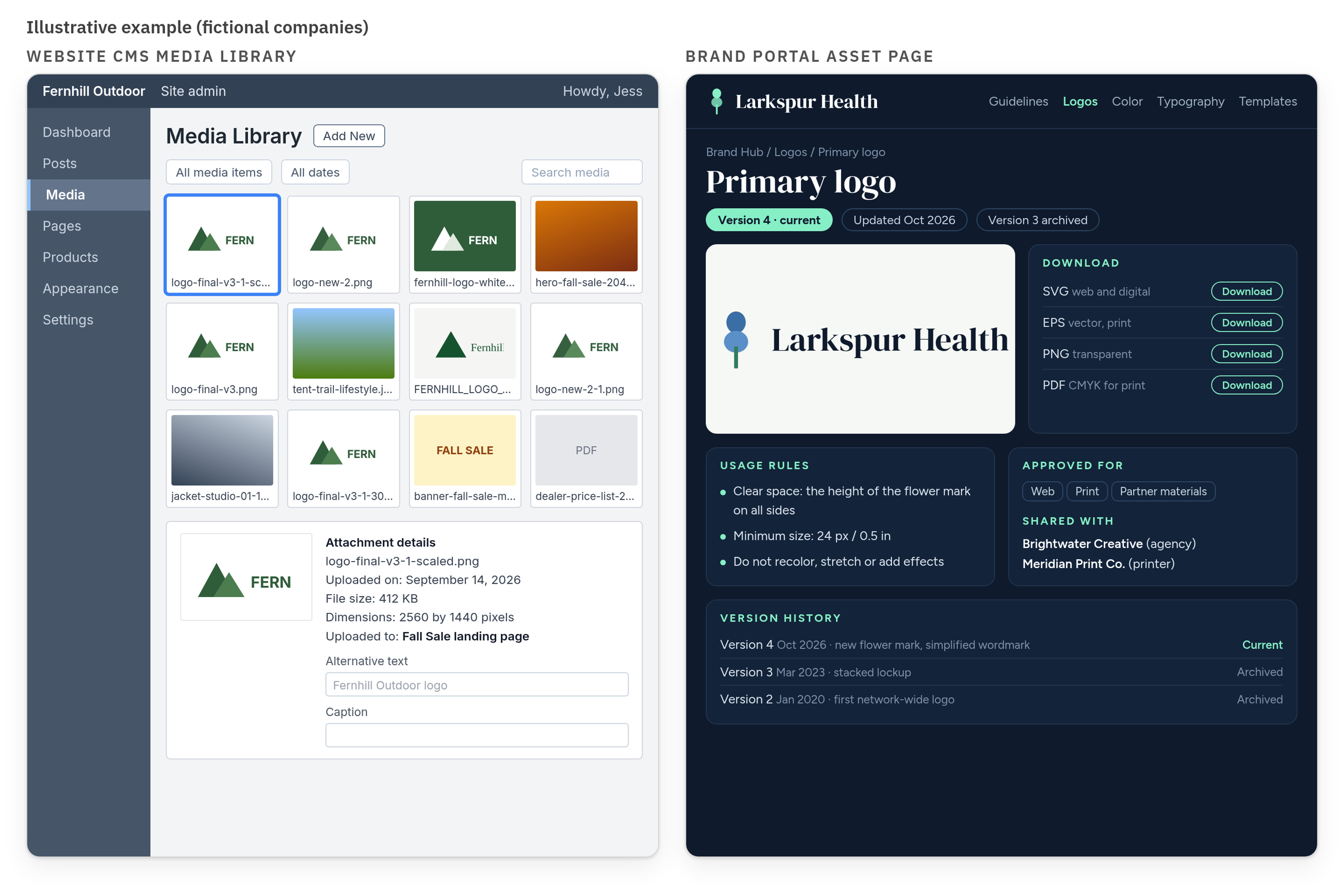
- Fernhill Outdoor, an outdoor gear retailer, keeps its logo in the website media library. The grid shows several similar files, including "logo-final-v3-1-scaled.png" and "logo-new-2.png". The details panel shows a 2560 x 1440 image, an alt text field and "Uploaded to: Fall Sale landing page". Nothing says which file is approved or how to use it in a magazine ad.
- Larkspur Health, a regional healthcare network, keeps its logo on a brand portal asset page. There is one primary logo with SVG, EPS, transparent PNG and CMYK PDF downloads, a "Version 4, current, updated Oct 2026" note with version 3 archived, the clear space and minimum size rules beside the file, the approved uses (web, print, partner materials) and the agency and printer it is shared with.
The difference is not the design of the screens. The media library answers "what did we upload for this page?", and the portal answers "which file should I use, in which format, and how?"
How a brand portal and a CMS work together
The division of labor is simple: the portal holds the master files, the rules and the version history, and the web team takes web-ready copies from the portal into the CMS. A logo refresh shows how it works across both systems.
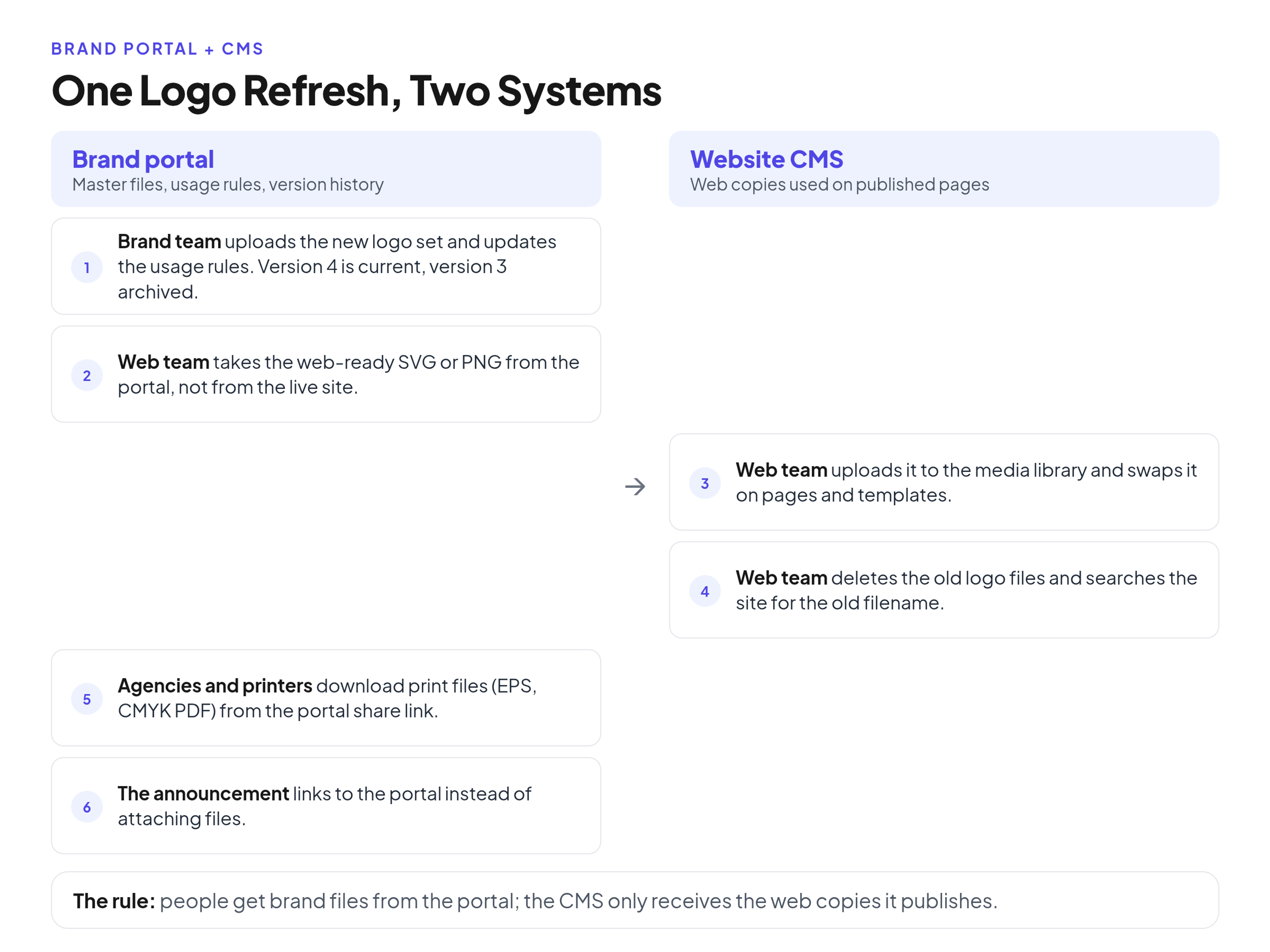
- The brand team uploads the new logo set to the portal and updates the usage rules. The new set becomes the current version, and the old one is archived.
- The web team takes the web-ready SVG or PNG from the portal, not from an old folder or the live site.
- The web team uploads it to the CMS media library and swaps it on pages and templates.
- The web team deletes the old logo files from the media library and searches the site for the old filename to catch leftovers.
- Agencies and printers download the print files, such as EPS and CMYK PDF, from the portal share link. The web team is not involved.
- The internal announcement links to the portal instead of attaching files, so nobody saves a copy that will be outdated next year.
Which system owns which file
- The CMS owns page-specific images: hero photos, blog thumbnails and images made for one campaign page.
- The portal owns the masters: logo files, color values, typography, templates, approved photography, print files and the guidelines.
- Shared assets, such as the favicon and the default social share image, are made from portal masters and then published through the CMS. When the master changes, the web team updates them.
The same rule covers partners. When you are handing brand files to agencies, printers and partners, send the portal link, not files saved from the website, and they always get the current version.
If you are setting up that portal, Brandportal combines online brand guidelines with an asset library. Portals can be public or password-protected, with folders, metadata and tagging, version history, share links, Admin, Editor and Viewer roles, and unlimited free viewers, so partners do not need paid seats. You can see plans and the 14-day free trial on paid plans.
Key terms: CMS, headless CMS, DXP, DAM and brand portal
- CMS (content management system): software for creating, editing and publishing website content, such as pages, posts and their images.
- Headless CMS: a CMS that stores and delivers content through an API, without a built-in front end, so the same content can appear on a website, an app or other screens.
- DXP (digital experience platform): a suite that combines a CMS with personalization, analytics and often commerce, used by larger organizations to run many digital channels.
- DAM (digital asset management): a system for storing, tagging and managing a company's whole media library, including raw photo shoots, video and archived campaigns.
- Brand portal: a focused site with the current brand guidelines and the approved files that follow them, open to the people who make branded work inside and outside the company.
Frequently Asked Questions (FAQ)
Can a CMS replace a brand portal?
Not well. A CMS can store a logo, but it is built to publish pages, not to give people the right file in the right format with the rules next to it. Outsiders also usually lack CMS accounts. Small teams can get by for a while, but once agencies and printers need files regularly, a separate brand portal saves time.
Can a brand portal replace the CMS?
No. A brand portal does not build or publish your website pages, run navigation or forms, or manage SEO fields. It feeds the CMS with approved files; it does not replace it.
Do people need a login to use a brand portal, and is that the same as a CMS account?
No. A brand portal can be public or password-protected, and viewers can open it or use a share link without an editor account. A CMS login is for people who edit the website, which is why it is a poor way to give an agency the logo.
Do we need a DAM as well as a brand portal and a CMS?
It depends on how much media you manage. Organizations with large photo and video archives often use a DAM for the full archive and share only the approved brand files through a portal. Many teams whose main need is current guidelines plus approved logos, templates and images can use a brand portal that includes asset management.
Should the website team pull images from the brand portal?
Yes, for anything that represents the brand: logos, brand colors, templates and approved photography. Page-specific images made for one landing page can live in the CMS alone.
Conclusion
A CMS answers "what do visitors see on our website?" A brand portal answers "which brand files are approved, and how should they be used?" for everyone who makes branded work. Keep pages, page history and web copies in the CMS, keep the masters, formats, rules and versions in the portal, and let the web team pull from the portal like everyone else. Then a logo refresh is a short checklist instead of a hunt through old uploads.