You run a brand portal by giving one owner a short routine: answer questions fast, publish approved files, and keep only current files on show.
A brand portal is the central online place where your company keeps its official brand guidelines and approved assets. But from my experience working with countless marketing teams, simply uploading files and walking away is a recipe for chaos. When the company expects a single source of truth, someone has to keep that truth accurate week after week.
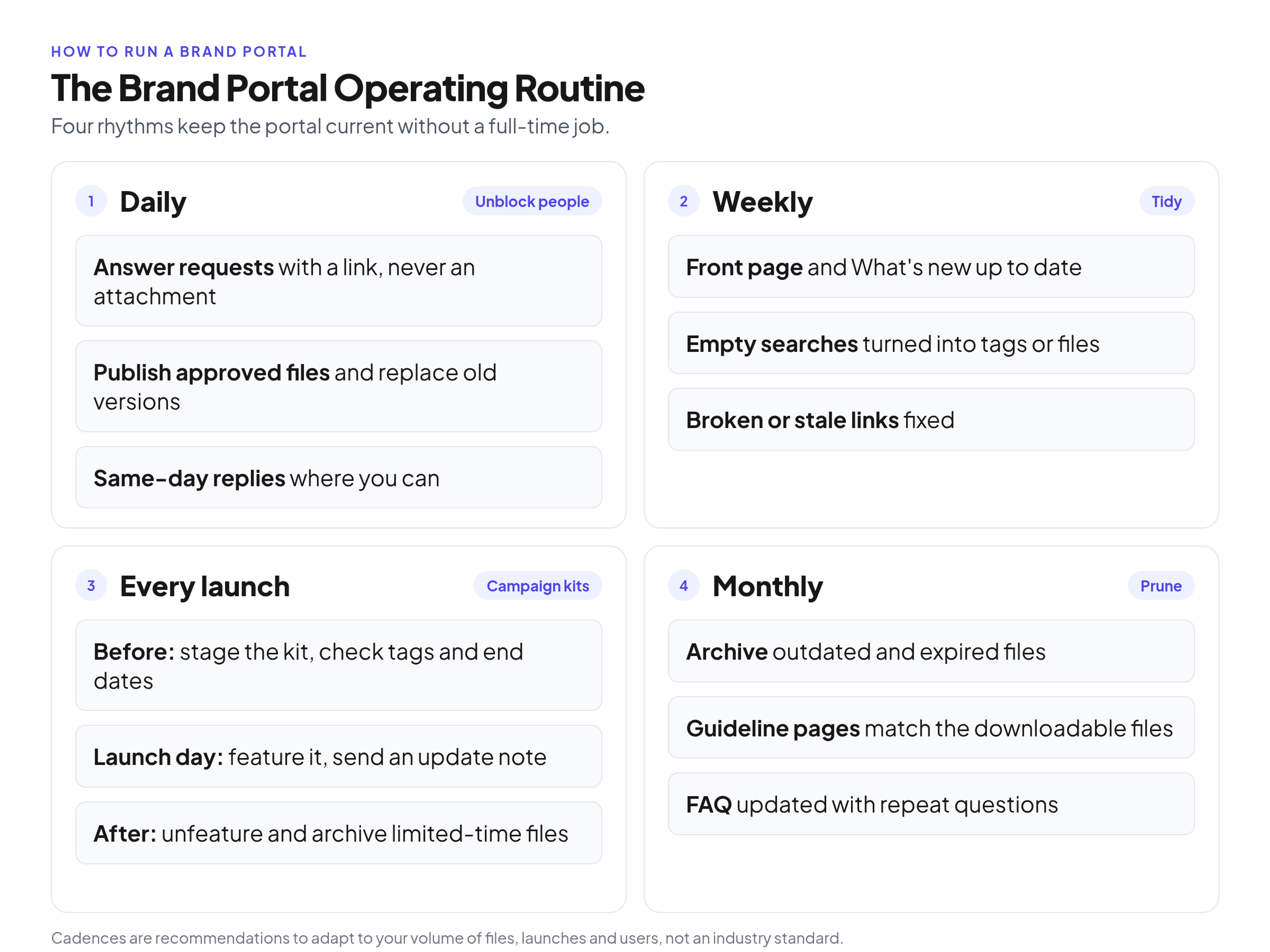
A routine for running a brand portal: daily, weekly, per launch and monthly. Cadences are recommendations to adapt, not a standard.
What running a brand portal involves
Running a brand portal means owning its day-to-day accuracy: the operator is the librarian and the first contact for anyone who needs a brand file. In practice, the job is a short list of recurring tasks:
- publish approved files and replace the versions they supersede
- answer questions and file requests, with a link rather than an attachment
- keep the front page and the What's new block current
- turn "can't find it" questions and empty searches into fixes
- keep the help pages, house rules and links working
- tell people when something important changes
This is not the same job as setting the rules. Roles, approval rules, audits and access reviews belong to governance, which has its own guide to roles, approval rules, audits and access reviews for a brand portal. Launch campaigns and champions belong to the rollout, covered in getting teams and partners to use the portal after launch. This article covers what happens every week once the portal is live.
The brand portal operating routine
A useful portal runs on four rhythms: daily for requests and uploads, weekly for a tidy, per launch for campaign kits, and monthly for pruning. The cadences below are recommendations to adapt to your volume, not an industry standard.
Daily: unblock people
- Answer requests. Check the portal inbox or team channel for questions and file requests and reply the same day where you can.
- Publish approved files. Clear the upload queue so new files go live while they are still news, instead of piling up for Friday.
Weekly: a short tidy
- Refresh the front page. Update the What's new block if anything important was published.
- Check empty searches. Look at searches that found nothing, if your portal reports them, and fix the cause.
- Fix links. Click through the main navigation and the most used share links; repair anything broken or stale.
- Close the loop. Make sure every question from the week has an answer with a link.
For every launch or campaign
- Before launch: stage the campaign kit in a collection, check names, tags, audience and any end dates on licensed files.
- Launch day: publish the collection, feature it on the front page and send a short update note.
- After the campaign: take it off the front page and archive limited-time files so nobody keeps using them by mistake.
Monthly: prune and check
- Prune and archive. Remove outdated files and anything whose license has ended.
- Match guidelines to files. Check that the examples on the guideline pages still match the files people download.
- Review help content. Add the month's repeat questions to the FAQ and fix anything the help pages get wrong.
Publishing new files without creating clutter
Every file needs a short check before it goes live, and a new version should replace the old one, not sit next to it. Before you publish, confirm that:
- it is the final export, not a working file
- the name follows your naming convention
- the required tags are filled in so search can find it
- it has an owner who can answer questions about it
- any licensed photo, font or video carries its usage terms and end date
- the audience setting shows it to the right people only
Leaving two versions of the same logo or deck side by side forces people to guess which one is correct. If your portal keeps version history, upload the new file as a new version of the old one, so existing share links point to the current file. Changes to the guidelines themselves follow their own process: see releasing a new version of the guidelines with a changelog.
Keep the front page current
The front page is where users judge whether the portal is maintained, so it should show only what is current: core identity, the active campaign kit, the most requested files, What's new and help links. If people see a holiday campaign kit in July, they will assume the rest of the portal is just as out of date.
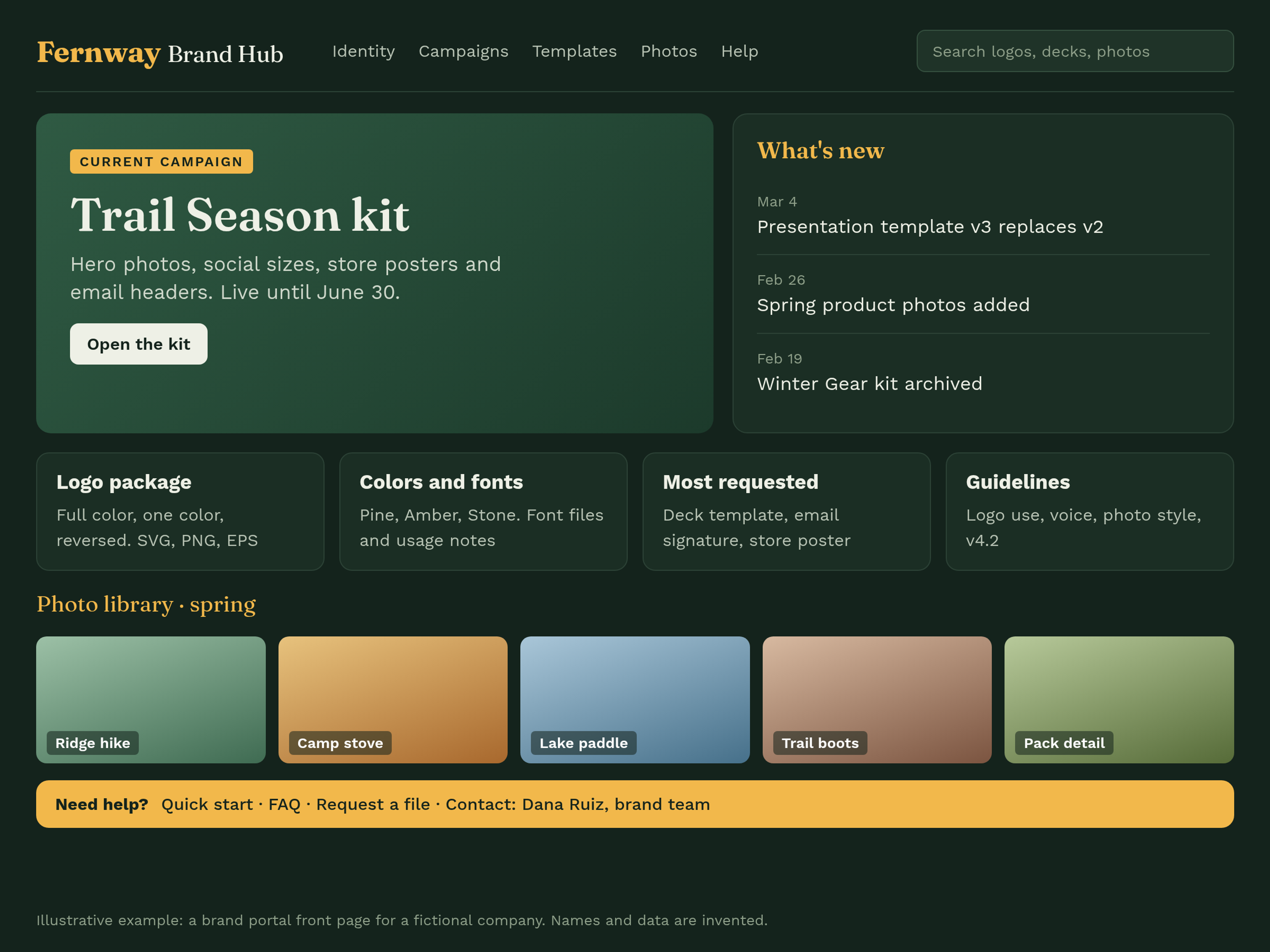
Illustrative example: a brand portal front page for a fictional company, Fernway Outdoor. Names and data are invented.
A practical front page holds five blocks:
- Core identity: logo package, colors, fonts and the guideline pages.
- Current campaign kit: only while the campaign runs.
- Most requested files: the handful of files people ask for again and again, such as the logo pack, the deck template and the email signature.
- What's new: the last few changes, each with a date and a link.
- Help: quick start, FAQ, how to request a file and who to contact.
Take temporary campaign files off the front page the day the campaign ends, and review the featured files at least once a month. Label sections and menus with the words people actually type and say. The US government's plain language guidance is built on writing for your specific audience so they understand it the first time. If people search for "deck," call the section "Presentation decks," not "Strategic communication templates."
Fix "can't find it" at the source
Every "where is the file?" question is a signal that the portal needs a fix, so fix the portal first and then answer with a link. Over the years, I have seen which portal management habits succeed and which fail, and this one separates portals people trust from portals they bypass.
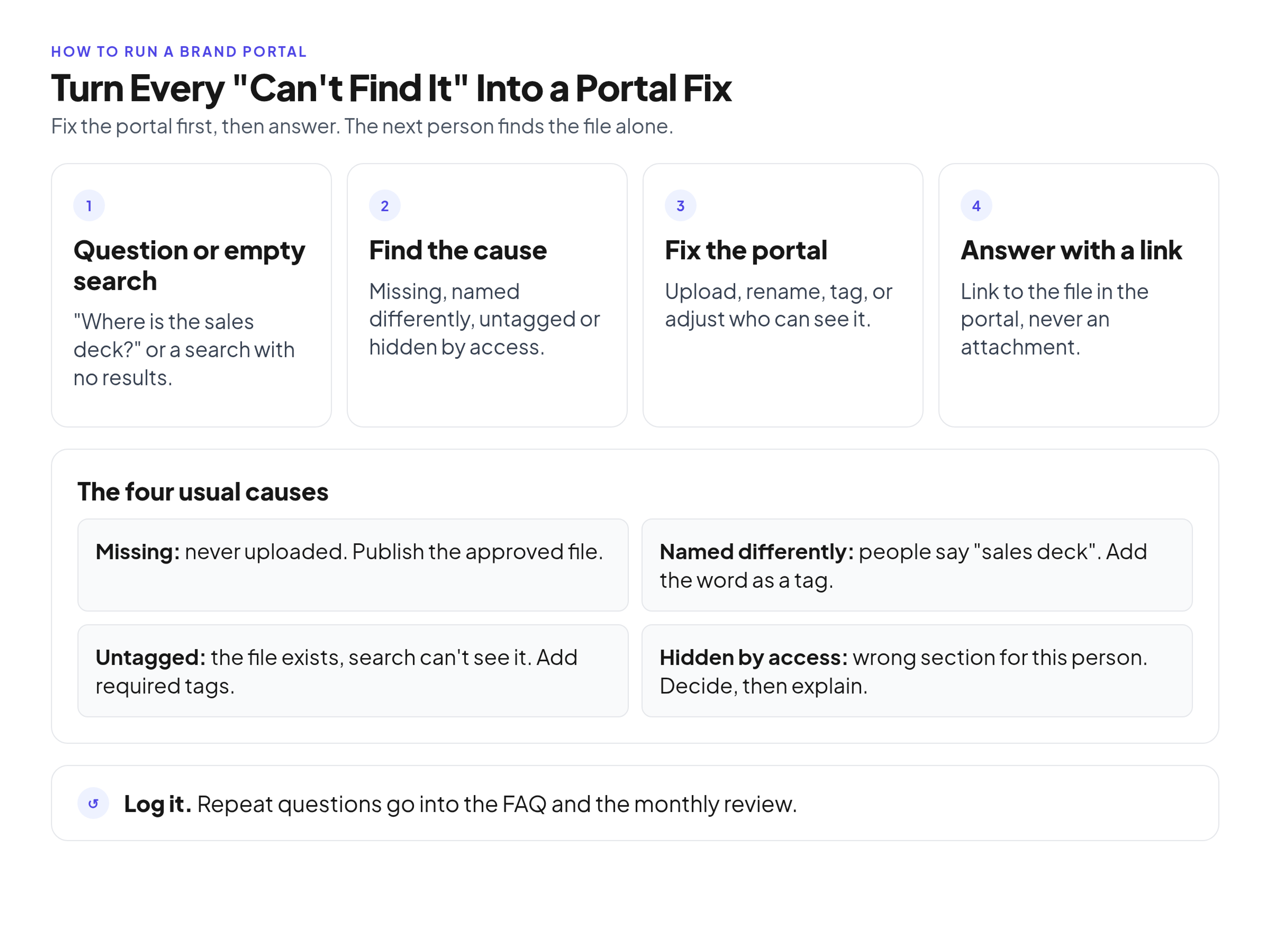
Turn every "can't find it" question into a fix in the portal, then answer with a link.
When a question comes in, find the cause:
- Missing: the file was never uploaded. Get the approved version and publish it.
- Named differently: people say "sales deck," the file says "corporate presentation." Rename it or add the word as a tag.
- Untagged: the file exists but search cannot find it. Add the required tags.
- Hidden by access: the file is in a section this person cannot see. Check whether they should see it; if not, explain where to ask.
Then reply with a direct link to the file in the portal.
Rule: never answer a file request with an attachment. Every attachment teaches people to ask you instead of the portal.
Empty searches work the same way. Baymard Institute's research on "No Results" pages found that a search with no results becomes a problem when it leaves users with no way forward, and that such dead ends often lead to abandonment. In a portal, an empty search usually means a missing synonym, a missing tag or a file you have not made yet. Add the term, fix the tag, or put the file on your to-do list.
Put help inside the portal
Help that lives inside the portal answers repeat questions before they reach your inbox: a quick-start page, an FAQ, a request route and a named contact. Keep each one short.
- Quick start: how to find a file, which format to pick, how to share a link instead of a file.
- FAQ: the questions you answered more than once this month, in the words people used.
- Request a file: where to ask for something missing and what to include (what it is for, size, deadline).
- Contact: a named person or a team address, plus a reply target your team sets and can keep, such as the same working day.
Portal house rules for users
House rules tell everyone how to use brand files, and they should fit on one screen. Put them on the front page or the quick-start page:
- Link to the portal; do not re-host copies on drives, wikis or chat.
- Download a fresh copy each time you start something new.
- Do not edit, stretch or recolor the logo.
- Check the end date on licensed photos, fonts and video before you use them.
- Ask before you share files with agencies, partners or press.
- Report broken links or outdated files to the portal contact.
Tell people what changed
Silent changes cause version conflicts, so every important change gets a short What's new note: what changed, why, what to stop using and a link. Post it on the front page and send it to the teams that use the file.
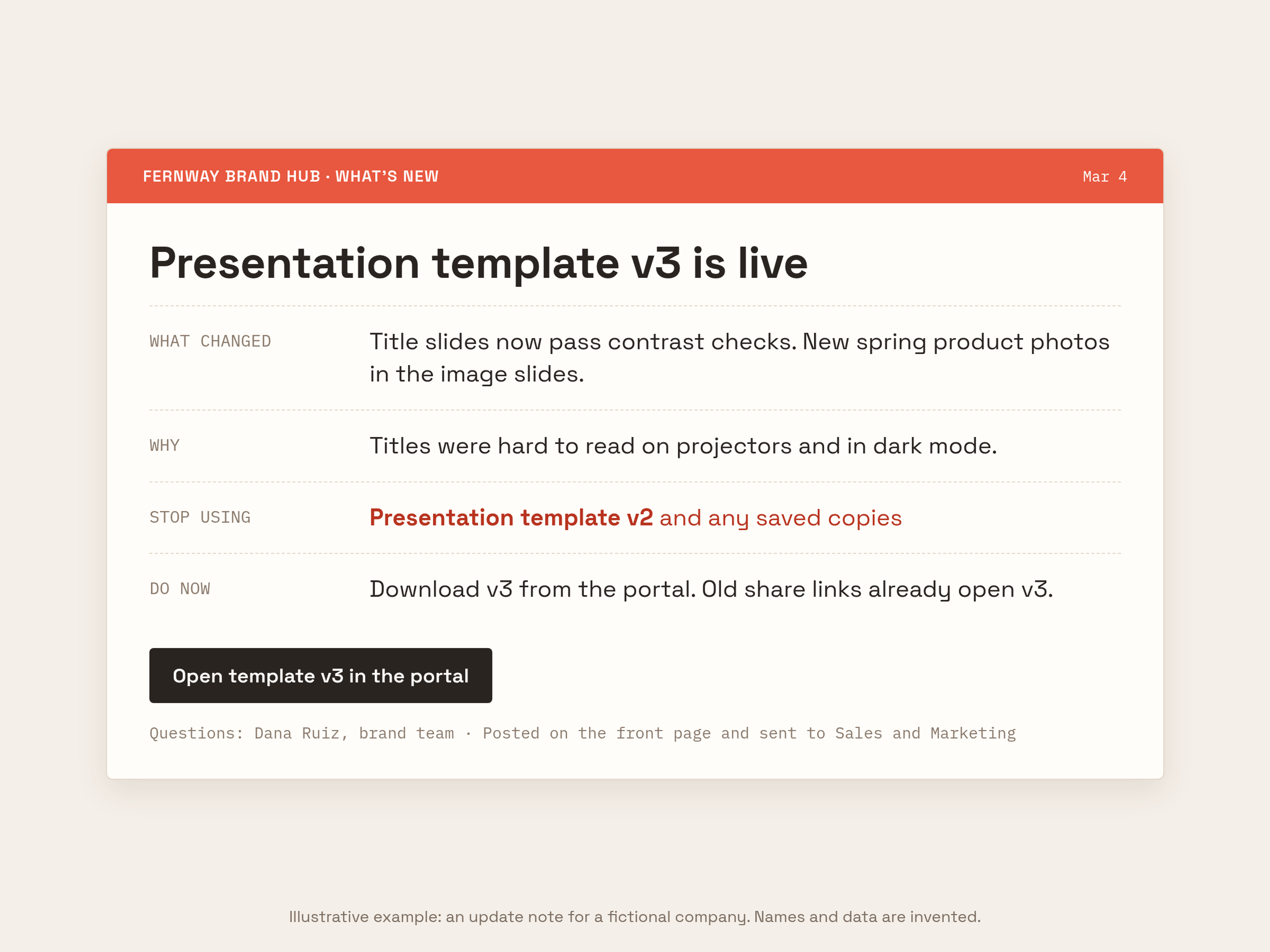
Illustrative example: a What's new note for a fictional company. Names and data are invented.
Here is an illustrative update note from a fictional company, Fernway Outdoor:
What's new: presentation template v3. We updated the main presentation template to fix low contrast on the title slides and to add the new spring product photos. Please stop using the v2 deck. Download v3 from the portal: [link].
The note works because it names the file, gives the reason in one line, says exactly what to stop using and links to the replacement.
Signals to review each month
A monthly look at a few signals tells you what to fix next: downloads and views by section, top searches, searches with no results, failing links and open questions. Use only what your portal actually reports, and pair it with the questions in your inbox.
- Downloads and views by section: what people use, and which sections nobody opens.
- Top searches: the words to use in labels and tags.
- Searches with no results: missing files, tags or synonyms.
- Failing links: share links or pages that no longer resolve.
- Open questions: anything unanswered or asked repeatedly.
When retiring files, a useful test comes from the UK government's guidance on retiring outdated content: will leaving it as it is get in the way of a non-specialist user? If an old file shows up next to the current one, it does.
When a portal service does part of the routine
A dedicated brand portal service takes the file plumbing off your list, so the routine above is mostly decisions rather than housekeeping. Brandportal gives you public or password-protected portals, folders, version history, share links, metadata and tagging, roles (Admin, Editor, Viewer), unlimited free viewers, and basic or advanced analytics depending on the plan. You can check the pricing and try it with a 14-day free trial on paid plans.
Common mistakes in running a brand portal
Most portals fail through small habits, not big decisions:
- A stale front page. Last season's campaign on top tells people the portal is not maintained.
- Answering by attachment. It solves one request and creates the next one.
- Duplicate versions. "Logo_Final_V2" next to "Logo_Final" forces people to guess.
- No owner for questions. Requests go unanswered and people go back to email.
- Silent changes. Teams keep using the template they downloaded last month.
- A help page nobody updates. The FAQ describes last year's process.
FAQ
Who should run a brand portal?
One named owner in the brand or marketing team, usually a brand manager, a marketing operations lead or a brand team member who knows the guidelines and can approve files. Name a deputy for holidays.
How much time does running a brand portal take?
The time commitment depends on the number of files, launches and users. However, if you stick to a structured routine (a short daily check of requests and a weekly tidy), the maintenance overhead is minimal. Start with a short weekly slot and adjust it to the real demand.
How often should the portal be updated?
Publish approved files as they come in, refresh the front page at every launch and at least monthly, and prune outdated files once a month.
What should go on the brand portal front page?
Core identity, the current campaign kit, the most requested files, a What's new block and help links. Nothing that has expired.
How do we stop people from using old files?
Archive or remove old versions, replace files as new versions so links stay current, announce changes with a What's new note, and make "download a fresh copy" one of the house rules.
Conclusion
Running a brand portal is a small, steady job: a daily look at requests and uploads, a weekly tidy, a routine for every launch and a monthly prune. Fix the portal every time someone cannot find a file, answer with links, and tell people what changed. Do that consistently and the portal stays the place people check first.